Visualforce Email template with component to render attachment
How to build a Visualforce component rendered as a PDF attachment on a Visualforce email template and send it automatically with a workflow rule.
From the archive: this post is from 2016, when I worked as a Salesforce developer. Some details are dated.
Today I am going to share my experience where I had to send email with dynamic attachments. I knew that we could do this easily via Apex code but it is hard to maintain if we have to edit some text or add some value in the template.
Unfortunately we cannot use standard apex:pageblock and apex:pageblocktable tags in Visualforce to generate attachments, so we need to do some modifications to move these over to generic HTML entities. Additionally, the Visualforce email handler doesn’t know how to use the object name.
To make it so we can send emails with the attachment as well as be able to generate the attachment we will be using Visualforce components and embed it in the Visualforce email template tag. Below is the html based visualforce component-
AccountPDF
<apex:component layout="none" access="global">
    <apex:attribute name="acc" description="Account details" type="Account" />
    <head>
        <style type="text/css" media="print">
            @page :first {
                @top-center {
                    content: element(header);
                }
            }

            @page {
                @bottom-left {
                    content: element(footer);
                }
            }

            * {
                margin: 0px;
                padding: 0px;
            }

            div.header {
                background: url("{!$Resource.AccountHeader}") no-repeat center center;
                margin-top: 30px;
                height: 130px;
                width: 715px;
                text-align: center;
                position: running(header);
            }

            div.content {
                padding-top: 130px;
            }

            div.footer {
                display: block;
                padding: 5px;
                position: running(footer);
            }

            div.subfooter {
                display: inline-block;
            }

            div.right {
                float: right;
            }

            .pagenumber:before {
                content: counter(page);
            }

            .pagecount:before {
                content: counter(pages);
            }

            .stationName {
                text-align: center;
                font-weight: bold;
                font-size: 20pt;
                margin-bottom: 30px;
            }

            table {
                width: 100%;
            }

            .centered {
                text-align: center;
            }

            .right {
                text-align: right;
            }

            .label {
                font-weight: bold;
            }

            .tableHeader {
                border-width: 0px 0px 1px 0px;
                border-color: #000;
                border-style: solid;
            }

            .sectionHeader {
                width: 100%;
                background-color: #eee;
                font-size: 16pt;
                padding: 5px;
                margin: 20px 0px;
                font-weight: bold;
            }

            #totalAmount {
                width: 100%;
                text-align: right;
                margin-top: 15px;
            }

            #totalAmountLabel {
                font-weight: bold;
                margin-right: 10px;
            }
        </style>
    </head>
    <div class="header"></div>
    <div class="content">
        <h1 class="accountName">
            {!acc.Name}
        </h1>

        <table id="status">
            <tr>
                <td class="label">{!$ObjectType.Account.fields.Name.Label}</td>
                <td><apex:outputText value="{!acc.Name}" /></td>
            </tr>
            <tr>
                <td class="label">{!$ObjectType.Account.fields.AccountNumber.Label}</td>
                <td><apex:outputText value="{!acc.AccountNumber}" /></td>
            </tr>
        </table>

        <div class="sectionHeader">{!$ObjectType.Opportunity.labelPlural}</div>
        <table id="resources">
            <tr>
                <th class="tableHeader">{!$ObjectType.Opportunity.fields.Name.Label}</th>
                <th class="tableHeader centered">{!$ObjectType.Opportunity.fields.StageName.Label}</th>
                <th class="tableHeader centered">{!$ObjectType.Opportunity.fields.Amount.Label}</th>
            </tr>
            <apex:repeat value="{!acc.Opportunities}" var="opp">
                <tr>
                    <td><apex:outputField value="{!opp.Name}"/></td>
                    <td class="centered"><apex:outputField value="{!opp.StageName}"/></td>
                    <td class="centered"><apex:outputField value="{!opp.Amount}"/></td>
                </tr>
            </apex:repeat>
        </table>

        <div class="sectionHeader">{!$ObjectType.Contact.labelPlural}</div>
        <table id="resources">
            <tr>
                <th class="tableHeader">{!$ObjectType.Contact.fields.Name.Label}</th>
                <th class="tableHeader centered">{!$ObjectType.Contact.fields.Email.Label}</th>
                <th class="tableHeader right">{!$ObjectType.Contact.fields.MailingCity.Label}</th>
                <th class="tableHeader right">{!$ObjectType.Contact.fields.MailingCountry.Label}</th>
            </tr>
            <apex:repeat value="{!acc.Contacts}" var="con">
                <tr>
                    <td><apex:outputField value="{!con.Name}"/></td>
                    <td class="centered"><apex:outputField value="{!con.Email}"/></td>
                    <td class="right"><apex:outputField value="{!con.MailingCity}"/></td>
                    <td class="right"><apex:outputField value="{!con.MailingCountry}"/></td>
                </tr>
            </apex:repeat>
        </table>
        <br class="clearboth" />
        <div id="totalAmount">
            <span id="totalAmountLabel">{!$ObjectType.Account.Fields.Total_Amount__c.Label}:</span>
            <apex:outputField value="{!acc.Total_Amount__c}"/>
        </div>
    </div>
    <div class="footer">
        <div class="centered">Generated by {!$User.FirstName} {!$User.LastName}</div>
        <div>
            <div class="subfooter">{!NOW()}</div>
            <div class="subfooter right">Page <span class="pagenumber"/> of <span class="pagecount"/></div>
        </div>
    </div>
</apex:component>
To use this component we will need a Visualforce page which will render it as pdf as below-
<apex:page standardController="Account" renderAs="pdf" applyBodyTag="false">
    <c:AccountPDF acc="{!Account}" />
</apex:page>
Now reference this page in our email template as below-
<messaging:emailTemplate subject="Details for Account - {!relatedTo.Name}" recipientType="User" relatedToType="Account">
    <messaging:plainTextEmailBody >
        Attached is an PDF version for the Account {!relatedTo.Name} with Opportunity and Contact details. Please review.
    </messaging:plainTextEmailBody>
    <messaging:attachment renderAs="pdf" filename="{!relatedTo.Name}.pdf">
        <c:AccountPDF acc="{!relatedTo}" />
    </messaging:attachment>
</messaging:emailTemplate>
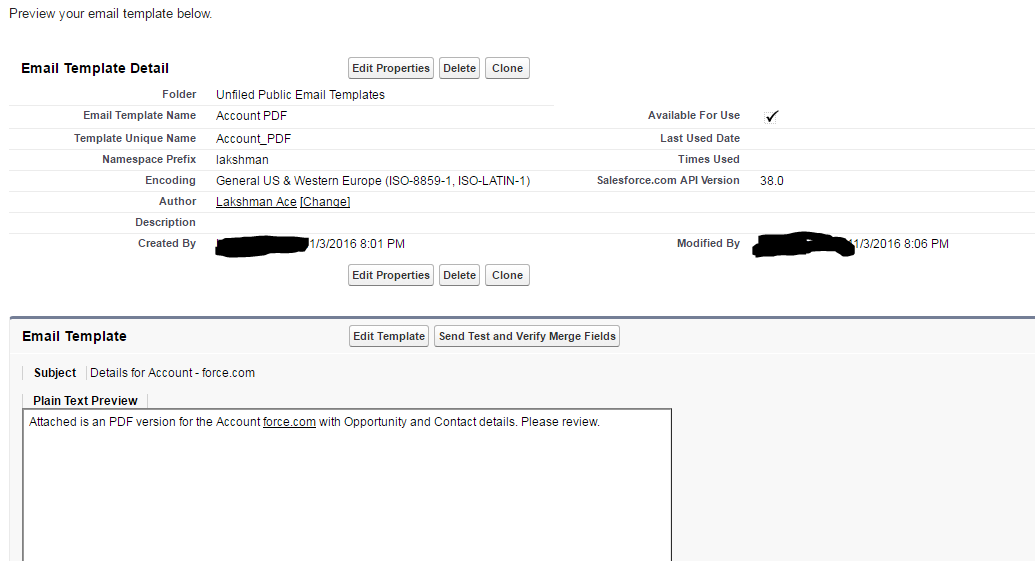
After saving this, we can test it by clicking the “Send Test and Verify Merge Field” button and choosing a User and an account.
Below is how our VF Template looks like-
AUTOMATICALLY SENDING THE ACCOUNT DETAILS VIA WORKFLOW RULE
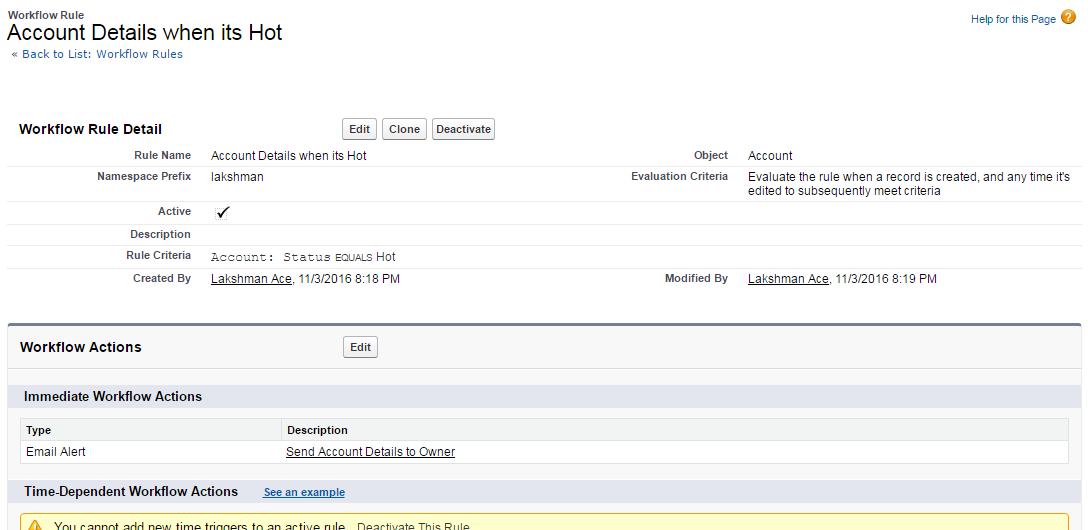
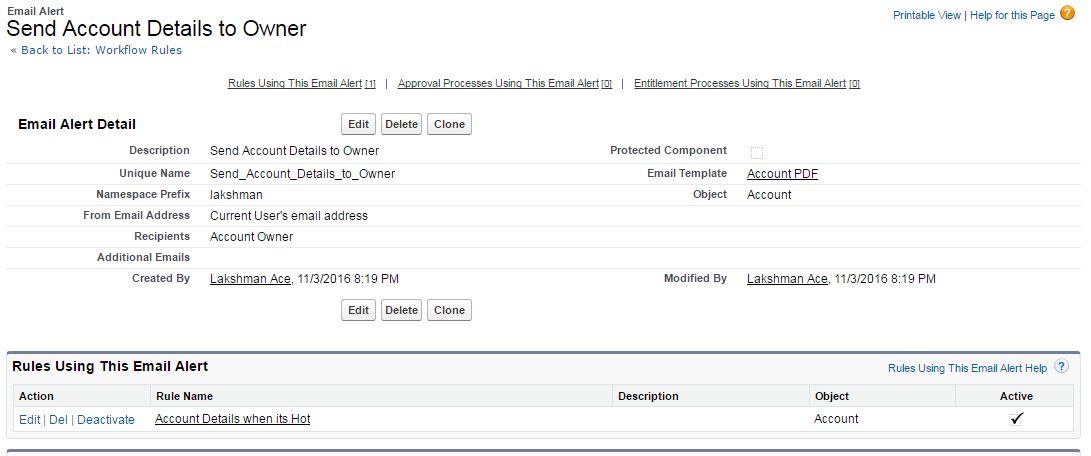
Now that we have our Visualforce email done, let’s set up the automation to send it when the status is set to Hot.
Workflow Rule
Email Alert
PDF attachment from automated Workflow
After updating the status on an existing Account to hot, I get the email below with the beautiful PDF attachment as expected-
Attached is an PDF version for the Account force.com with Opportunity and Contact details. Please review.
force.com.PDF by Lakshman on Scribd